Pinky: Let AI Agents Use Your Phone, With You in Control
Pinky lets an AI agent operate a real phone while you stay in charge of the steps that matter. Any agent that speaks MCP, including Claude Code, Claude Desktop, Codex, Cursor or a plain script, can drive an iPhone or an Android phone through Pinky. You watch the phone mirrored on your computer, approve risky steps, take over at any moment, and review a recording of what happened afterwards.
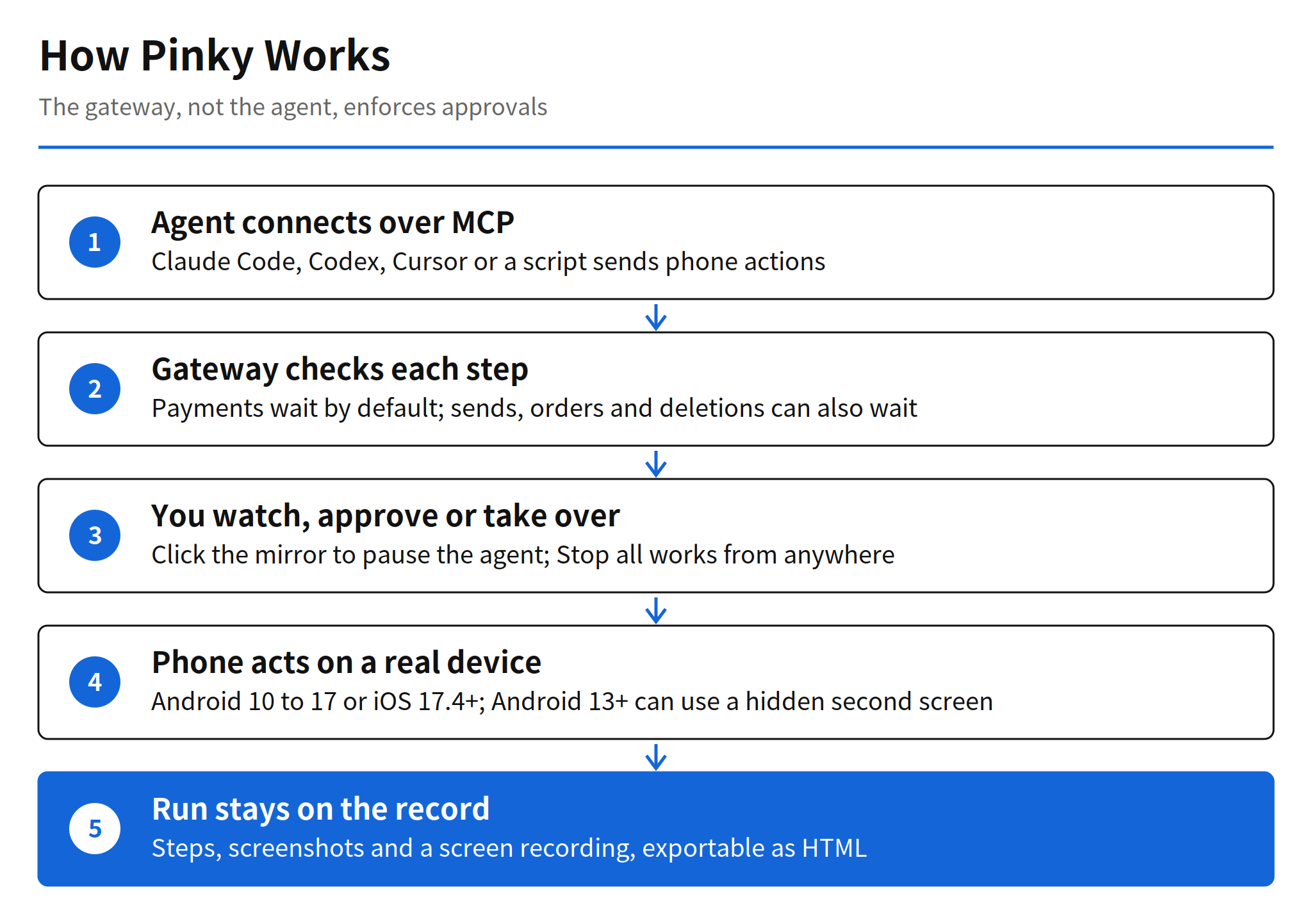
The control design is the reason this project stands out from the usual phone agent demos. The README states it in one line: approvals are enforced by Pinky's gateway, not by instructions to the agent. A prompt can tell an agent to be careful, and a screen full of hostile text can tell it not to be. Pinky puts the check in the path between the agent and the phone instead, so the agent cannot approve its own payment, trade or transfer, even if on-screen text tries to talk it into doing so.
The repository was created on November 6, 2026 and reached 1,998 stars in 7 days, about 285 stars a day, with 211 forks at the issue check. A fresh GitHub API check for this article showed 2,065 stars and 225 forks. The code is Go, the license is Apache-2.0, and there is no account to create and no price. Pinky is free and open source.
What the Gateway Holds Back
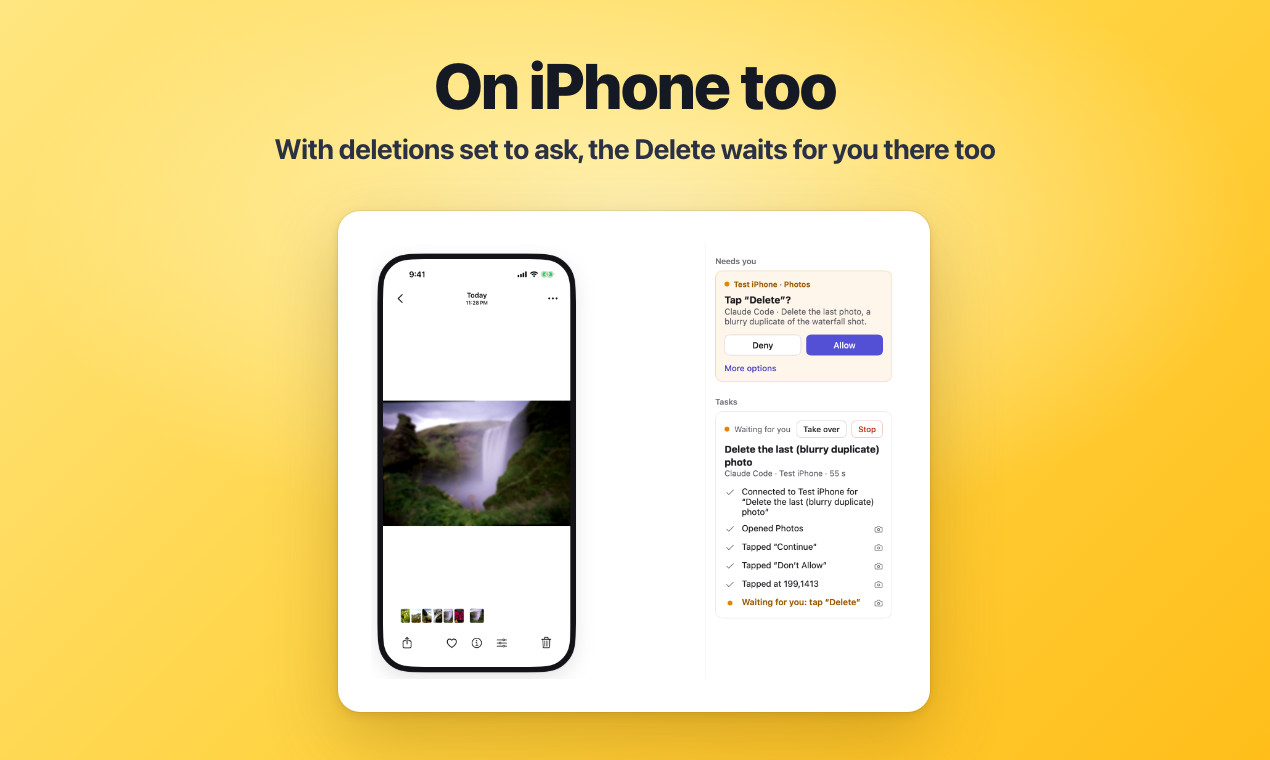
Payments, trades and transfers wait for your click by default. In Settings, Safety, you can widen the net: sends, orders, deletions, calls, installs, links that leave the app and settings changes can all be set to wait, or you can require approval for every step. Pinky spots these buttons in 10 languages, which matters because a safety check that only reads English button labels would miss the same action in a Korean or Japanese app.
Some places are off limits before any task starts. Banking, wallet and password-manager apps are invisible to agents by default, and agents cannot type into password or one-time-code fields at all. If a task genuinely needs a banking or wallet app, the agent has to ask, and you can allow that one app for that one task only. The same consent logic applies to the agents themselves: every new agent needs your approval and receives only the scope you give it.
Takeover is equally direct. Click the phone mirror and the agent pauses until you hand control back. On Android, touching the phone yourself pauses it too, and a Stop all shortcut works from anywhere: Option and Command with a period on a Mac, Ctrl, Alt and a period on Windows and Linux. For the locked phone problem, you can save the phone PIN in Pinky once and then confirm each unlock with Touch ID, Windows Hello or your keyring password. The README is explicit that agents never see the PIN.
Installation and First Run
- Download Pinky. Get the latest release from GitHub. On a Mac, open the arm64 DMG for Apple silicon or the amd64 DMG for Intel and drag Pinky to Applications, or run
brew install --cask diygod/tap/pinky. On Windows, run the setup exe, which installs per user without administrator rights. On Debian and Ubuntu, install the .deb package; other Linux systems can unpack the tar.gz build. - Check the requirements. The computer needs macOS 13 or later, Windows 10 or 11 in 64-bit, or a 64-bit Linux with glibc 2.29 or later and GTK 3. The phone needs Android 10 to 17 or iOS 17.4 or later, plus a USB cable for setup. iOS Simulator and Android emulator targets work in place of a phone.
- Add an Android phone. On the phone, tap Build number 7 times in Settings, About phone, then turn on USB debugging in Developer options. Plug the phone in and tap Allow on the debugging prompt. Pinky shows brand-specific steps for Xiaomi, OPPO, vivo, HONOR, HUAWEI, Samsung and Pixel, and it brings its own adb, so no platform tools install is needed. Android 11 and later can also pair over Wi-Fi.
- Add an iPhone. Setup starts over USB and works over Wi-Fi afterwards. On iOS 27 and later there is nothing to install on the phone. On iOS 17.4 to 26, Pinky's iPhone app is installed once from a Mac with Xcode. Each phone gets a Checkup page that lists what works and how to fix what does not.
- Connect your agent. In Settings, Agents, connect Claude Code, Claude Desktop, Codex, Cursor and more in one click. Any MCP client works, on the same computer over stdio or remotely over HTTP. Then ask the agent to do something on the phone and watch it work in Pinky's window.
The build itself is part of the pitch. The window is drawn by MyGo on the GPU, with no Electron and no webview, which is how the download stays at 16 to 22 MB and idle memory at about 70 MB with 0% CPU on a Mac. Phone control tools are usually heavy desktop stacks; a native 20 MB utility is a different deployment story, especially on the laptop that also runs the agent.
Platform Coverage and the Second Screen
One Pinky app covers macOS on Apple silicon and Intel, Windows and Linux, and drives the full spread of current phones: Android 10 to 17 and iPhones on iOS 17.4 or later. That breadth matters less as a spec sheet than as a workflow fact. The agent, the approval window and the recording all live in one place, whichever phone is plugged in.
The most practical Android feature is the hidden second screen. On Android 13 and later, agents work on a separate background display, so the phone's own screen stays yours, or stays off and locked, while the agent works. On older Android phones and on iPhones the agent uses the main screen, which means the phone is busy while a task runs. Anyone who has watched a phone agent take over the only screen in the house will understand why the second screen is the difference between a demo and a daily tool.
Every run is recorded in the same place. Each step is listed in plain words, with screenshots and a screen recording marked per step, exportable as an HTML report, and it all stays on your computer. For an agent that can send messages and spend money, that local audit trail is not decoration. It is how you answer the question of what the agent actually did last Tuesday.
Pinky Working on Its Own
Pinky is not only a bridge for desktop agents. Its own app on Android and iPhone can do tasks by itself with a model you choose, from DeepSeek, Qwen, Kimi and GLM to Claude, GPT, Gemini and local models in Ollama or LM Studio. You can type or speak a task, or share something to the app, and on Android a floating button lets you ask about what the screen currently shows.
Scheduled tasks and memory extend that standalone mode. Pinky can run a task at set times or tell you when a condition holds, on the computer and on Android. After a task it may suggest a note to remember, such as a preference you mentioned, and it keeps the note only if you say yes. That consent detail fits the rest of the design: the system asks before it keeps things, just as it asks before it spends.
My read: the durable idea here is enforcement placement. Most agent safety today is a paragraph in a system prompt, which fails the moment the screen itself becomes the attacker. Pinky moves the rule into a gateway the agent cannot edit, hides the highest-risk apps by default, and keeps the evidence on your machine. That is the same shape a serious on-device agent stack will need, whoever ends up building it.
Limits and Unconfirmed Points
- Pre-alpha status: the README says so directly. Claude Code has used real phones through Pinky end to end, including an Android phone over USB and iPhones on iOS 27 and iOS 18.7.11, but some built features, including Wi-Fi pairing and phone file access, still wait for a person to try them, per the project's acceptance notes.
- iOS setup differs by version: iOS 27 and later needs nothing installed on the phone, while iOS 17.4 to 26 needs Pinky's iPhone app installed once from a Mac with Xcode. The exact per-version limits need the phones section of the README for each device, and broad real-device coverage is still thin.
- Unsigned Windows installer: the installer is not signed yet, so SmartScreen may warn that Windows protected your PC. The documented path is More info, then Run anyway, which is a trust decision each user makes for themselves.
- Stability and latency unmeasured: long-run stability and step latency have no published measurements. The issue record lists both as unconfirmed, and the acceptance page is a checklist, not a benchmark.
- Approval coverage in real payment flows: payments wait by default in the documented design, but how completely the gateway catches every real-world payment variant, across apps and languages beyond the 10 it spots, is unconfirmed.
- Main screen contention on iPhone: the hidden second screen is Android 13 and later only. On iPhone the agent uses the main screen, so the phone is occupied during a run.
FAQ
What is Pinky?
Pinky is a free, open source app that lets an AI agent operate a real iPhone or Android phone over MCP, while you watch on your computer. It runs on macOS, Windows and Linux, drives Android 10 to 17 and iOS 17.4 or later, and is released under the Apache-2.0 license with no account to create.
How does Pinky keep risky phone actions under control?
Approvals are enforced by Pinky's gateway, not by instructions to the agent, so an agent cannot approve itself. Payments, trades and transfers wait for your click by default, and you can extend that to sends, orders, deletions, calls, installs and more. Banking, wallet and password-manager apps are invisible to agents by default, and agents cannot type into password or one-time-code fields.
How do you set Pinky up?
Download Pinky from the latest GitHub release for macOS, Windows or Linux, open it and choose Add phone. For Android, turn on USB debugging, plug the phone in and allow the debugging prompt. Then connect your agent in Settings, Agents, which supports Claude Code, Claude Desktop, Codex, Cursor and any other MCP client in one click.
Can Pinky work without a computer or an external agent?
Yes. Pinky's own app on Android and iPhone can do tasks by itself with a model you choose, from DeepSeek, Qwen, Kimi and GLM to Claude, GPT, Gemini and local models in Ollama or LM Studio. It also supports scheduled tasks and, on Android 13 and later, work on a hidden second screen while you keep using the phone.
Is Pinky finished software?
No. The project calls itself pre-alpha. Claude Code has used real phones through it end to end, but the README says some built features still wait for a person to try them, and the Windows installer is not signed yet. Long-run stability and latency have no published measurements.
Related Reading
- Claude Cage Release: Isolated VM, 3,181 Stars in 11 Days, another take on containing agent actions, isolating the workspace instead of gating the device