Blender AI MCP Addon: Visual Chat, 21 Tools, Agent Teams
A new Blender addon called mcp-for-blender-pro, by developer hitkeeen, puts the AI assistant inside Blender itself. The repository was created on November 12, 2026 and had reached 2,179 stars and 53 forks when observed on November 17, roughly 544 stars per day over its first four days. It ships as release 1.0.0 under the MIT license, for Blender 4.2+ on Windows x64.
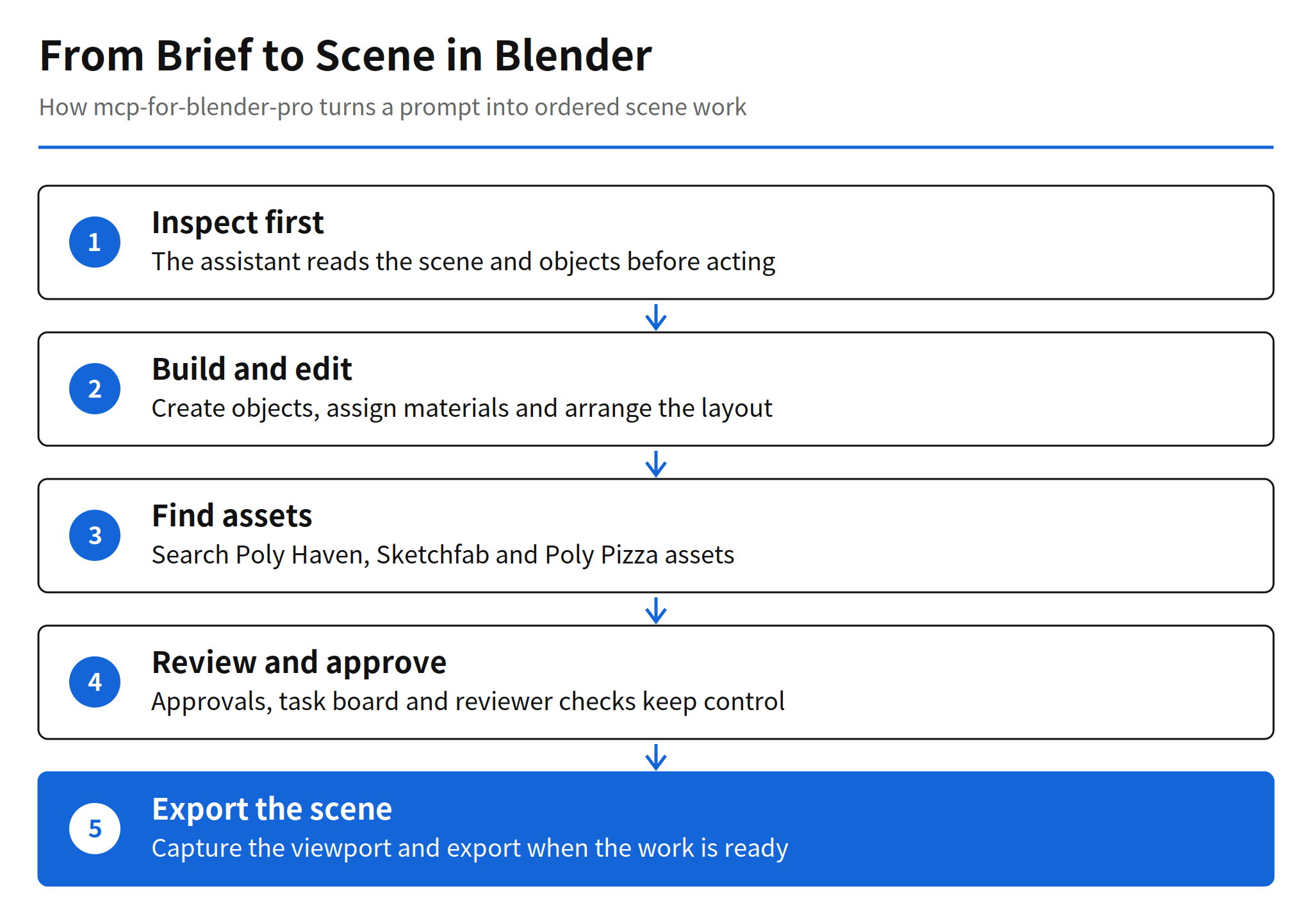
The core idea is a visual chat workspace, called Studio, that sits alongside the scene. The assistant inspects the scene first, then creates objects, edits materials, searches for assets and carries out multi-step workflows, while the user follows each operation in the conversation and checks the result in a live viewport preview. That inspect-first order matters in 3D work, because a model that edits a scene it has not read will duplicate objects, overwrite materials and break hierarchies that took hours to build.
Studio Workspace and Scene Preview
Studio brings chat, scene objects, viewport snapshots, approvals and a task board into one companion window. The screenshot in the README shows a conversation pane on the left, a live scene preview that refreshes every three seconds, an activity panel reporting 21 tools available, and a scene collection listing the cube, light and camera already in the file. Suggested prompts sit in the middle of the workspace, including creating a gold sphere, planning a studio lighting setup and exploring the current scene.
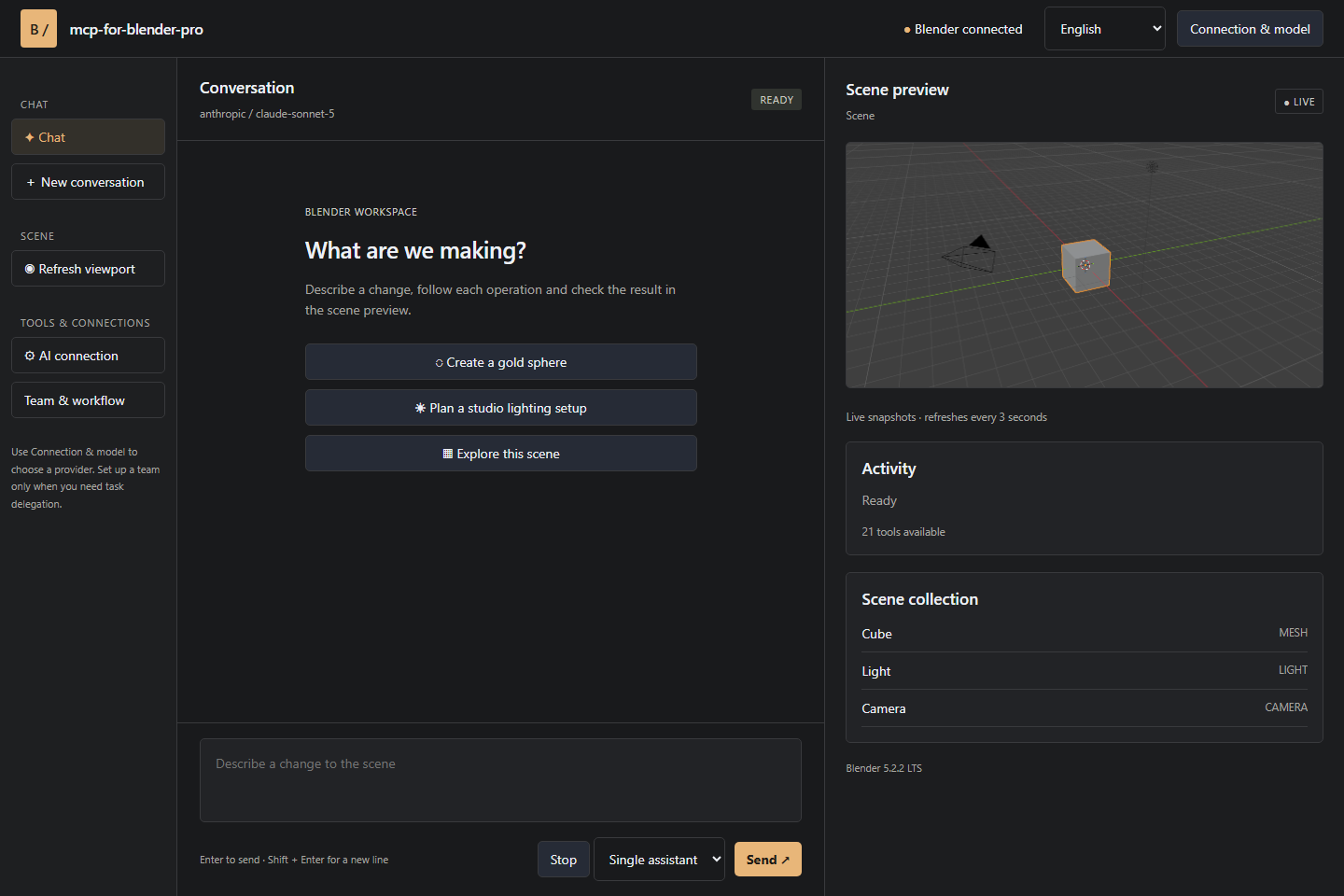
That layout is the practical difference from a plain MCP server. An external client can call Blender tools, but the artist has to switch windows to see what changed and has no shared place for approvals and task state. Here the preview, the collection and the conversation stay in view together, so a wrong edit is visible while it is still cheap to undo. The README also notes named undo steps for mutations, cancellation after the current step, and operation approvals in the built-in chat.
Twenty-One Scene Tools
The 21 scene tools cover six groups. Scene inspection provides get_scene_info, list_objects and get_object_info. Object creation provides add tools for a cube, sphere, cylinder, plane, light and camera. Editing provides move, duplicate, delete, parent and set_material. Visual feedback and scripting provide viewport_screenshot and execute_code. Blender API and export provide bpy_api_lookup, describe_node_type and export_scene. Asset workflows provide search_assets and import_asset, with integrations for Poly Haven, Sketchfab and Poly Pizza.
The inclusion of an API lookup tool is a quiet but important design choice. Blender's Python API is large, and models regularly invent plausible function names that do not exist. Giving the assistant a way to consult the API before running code reduces that class of failure, although the README is explicit that Python tool validation helps catch disallowed operations and is not a security sandbox. External MCP clients manage their own approval policies, so the safety story depends on which front end drives the same tools.
Model Connections and Custom Endpoints
Supported connections include OpenAI, Anthropic Claude, Google Gemini, OpenRouter, OpenCode Zen, Ollama and custom APIs. Saved connections let a user keep work and personal setups separate, including multiple keys for the same provider. Custom endpoints support the OpenAI Chat Completions, Anthropic Messages and Ollama protocols.
The README gives two selection rules that are easy to miss. Choose models with tool-calling support, because the whole workflow depends on structured tool use. Image-capable models can also interpret viewport screenshots, which closes the visual feedback loop that a text-only model lacks. Local Ollama support matters for the same reason offline work matters in studios: a scene that cannot leave the machine can still get an assistant, at the cost of whatever capability the local model gives up against cloud models. No comparative performance figures for local versus cloud models are published, so that tradeoff is unconfirmed in practice.
Single Assistant and Team Chain Modes
For direct work, a single assistant handles the conversation. For larger tasks, a Team chain assigns separate responsibilities, instructions and models. A manager breaks the request into assignments and acceptance criteria. Workers perform the assigned scene operations. Reviewers inspect results and approve work or return specific findings.
Tasks run sequentially so scene edits stay ordered, which is the right constraint for a shared mutable scene where parallel edits would collide. A blocked task gets one correction attempt, and a second failed review stops the workflow. That stop rule is the most credible part of the design. Agent teams without a hard stop tend to loop, spending tokens while the scene drifts further from the brief. The task board exposes assignments, attempts and review findings as work progresses, so the user can see where a chain stalled instead of guessing.
My read: the team mode is best understood as structured delegation for big, decomposable jobs such as building a product display with a pedestal, camera and three lights, not as a speedup for small edits. For a single material change, the manager and reviewer overhead is likely slower than one assistant acting directly. The README publishes no success rates or timing for team workflows, so that judgment comes from the structure described, not from measured results.
Installation Steps
- Download mcp-for-blender-pro.zip from the latest GitHub release.
- In Blender, open Edit, Preferences, Get Extensions, then use the menu to choose Install from Disk.
- Select the ZIP, enable mcp-for-blender-pro, then open 3D Viewport, N, MCP Pro.
- Choose a provider, add connection details and select a model.
- Send a message in Blender or click Open Studio Window.
The release bundle targets Windows x64 with Blender 4.2 or later, and Blender must stay open while using Studio or an external client. Example prompts in the README include inspecting a scene and explaining its object structure before making changes, creating a product display with a pedestal, camera and three lights with a matte blue material on the pedestal, duplicating a selected object into a spaced row of five, and finding a Poly Haven asset while asking before importing it. That last prompt shows the intended control pattern: search freely, ask before the scene changes.
Built-In MCP Server and External Clients
Beyond its own chat, the addon runs a built-in MCP server that other clients can connect to through authenticated Streamable HTTP MCP. The sidebar can launch OpenCode Portable with the Blender connection already configured, and OpenCode manages its own provider sign-in and model selection. OpenCode-only free models are available through the OpenCode client.
This is where the comparison with the established tool in this space becomes useful. The earlier ahujasid mcp-for-blender, covered in issue #3306, built a large following of about 31,000 stars as a server that external MCP clients drive. This new project does not abandon that pattern, since it still exposes an MCP endpoint, but its center of gravity is the packaged in-Blender experience: chat, preview, approvals and a task board in one install. Whether the two codebases are related is not stated in the README and remains unconfirmed.
Limits and Unconfirmed Points
- Platform scope: the badges and install notes cover Windows x64 with Blender 4.2 or later. Support for macOS and Linux is unconfirmed from the README.
- No performance data: multi-agent success rates, task completion times and model comparisons are not published, so team mode effectiveness is unmeasured in the source material.
- Code relationship: whether this project forks or reuses the earlier mcp-for-blender code is not stated and remains unconfirmed.
- Not a sandbox: Python tool validation helps catch disallowed operations but is explicitly not a security sandbox. Credentials are stored in user settings, and chat history lasts only for the current session.
- Interface languages: the main interface supports English, German, French, Spanish and Chinese. Other languages are not listed.
FAQ
What is mcp-for-blender-pro?
It is an AI assistant addon for Blender by hitkeeen, released as version 1.0.0 under the MIT license. It combines a visual chat workspace in a Studio window, 21 scene tools and a built-in MCP server, so the assistant can inspect a scene before creating objects, editing materials and running multi-step workflows.
How do you install the Blender AI addon?
Download mcp-for-blender-pro.zip from the latest GitHub release, then in Blender open Edit, Preferences, Get Extensions, Install from Disk, select the ZIP and enable mcp-for-blender-pro. Open 3D Viewport, N, MCP Pro, choose a provider, add connection details and select a model. The release bundle targets Windows x64 with Blender 4.2 or later.
Which AI models can it use?
Supported connections include OpenAI, Anthropic Claude, Google Gemini, OpenRouter, OpenCode Zen, local Ollama models and custom APIs. Custom endpoints support OpenAI Chat Completions, Anthropic Messages and Ollama protocols. The README advises choosing models with tool-calling support, and image-capable models can also interpret viewport screenshots.
How does the multi-agent team mode work?
A manager breaks a request into assignments and acceptance criteria, workers perform the assigned scene operations, and reviewers inspect results and approve work or return specific findings. Tasks run sequentially so scene edits stay ordered. A blocked task gets one correction attempt, and a second failed review stops the workflow.
How is this different from the earlier Blender MCP addon?
The earlier ahujasid mcp-for-blender, covered in issue 3306, is a server that external MCP clients connect to and has about 31,000 stars. This project packages the chat workspace, task board and approval flow inside the Blender experience itself, alongside its own built-in MCP server. Whether its code is a fork or an independent implementation is not stated in the README and remains unconfirmed.
Related Reading
- Ask AdMob Release: Agent Skills, MCP Server and How It Works, another release that pairs an MCP server with a human approval step